

Download Microsoft Office Academic – free, secure, student productivity suite
Overview
Microsoft Office Academic is the quintessential productivity suite designed specifically for college and university students who need a reliable, feature‑rich environment without the cost of a full commercial license. Although the original download links have been retired, the suite remains a popular reference point for students looking for a lightweight yet powerful set of tools. The Academic edition mirrors the core functionality of the standard Office 2011 release, delivering the four essential applications—Word, Excel, PowerPoint, and Outlook—while omitting more enterprise‑focused components such as Access, Publisher, InfoPath, SharePoint, and Communicator.
This streamlined approach keeps the installation size modest and the learning curve gentle, making it ideal for first‑year undergraduates, graduate researchers, and even faculty members who prefer a no‑frills workspace. One of the standout innovations introduced with Office 2011 Academic is the Ribbon interface, which replaces traditional menus with context‑aware tabs that expose the most frequently used commands at a glance. This design not only frees up screen real estate but also speeds up document creation, data analysis, presentation building, and email management.
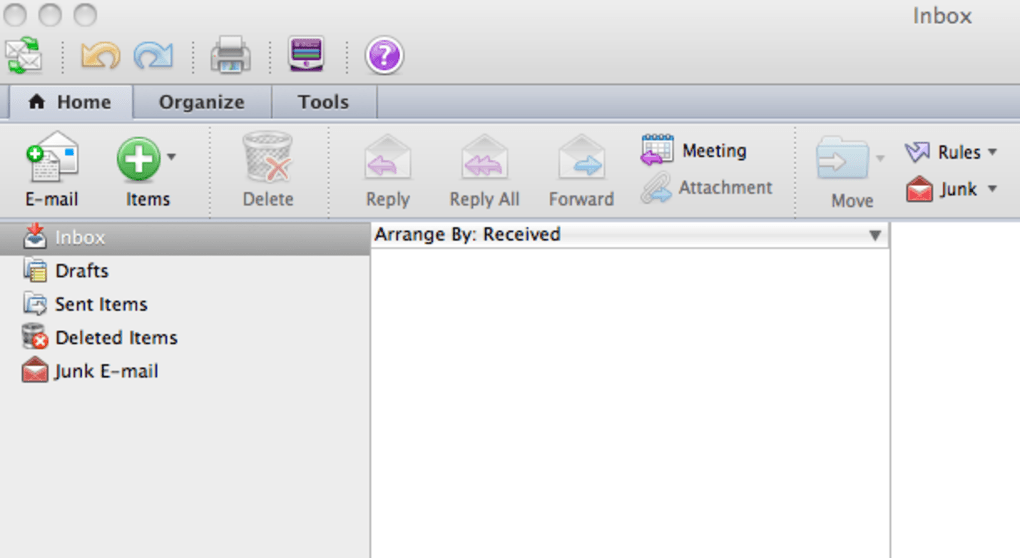
For Mac users, the inclusion of Outlook marked a major milestone, allowing seamless synchronization of email, calendar, and contacts across Windows and macOS platforms. Office Web Apps are also integrated, giving students the ability to collaborate on documents in real time, whether they are drafting a research paper in Word or constructing a data‑driven chart in Excel. The suite’s minimalist visual style emphasizes clarity and focus, with a modern Office button that provides quick access to document‑related tasks and detailed file information.
In short, Microsoft Office Academic delivers a balanced mix of performance, compatibility, and student‑centric features that remain relevant even as newer versions emerge.
Key Features and Functional Highlights
- Full‑featured Word processor with real‑time collaboration, track changes, and built‑in citation tools.
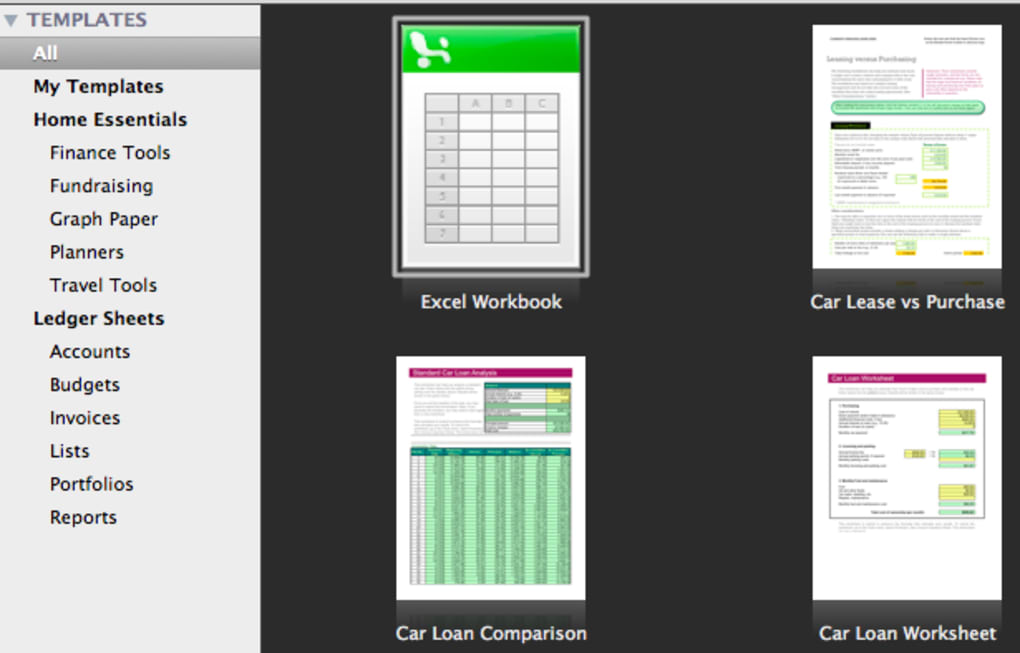
- Excel spreadsheet engine supporting advanced formulas, pivot tables, and data visualization.
- PowerPoint presentation creator with multimedia integration, custom animations, and slide master templates.
- Outlook email and calendar client for Mac, enabling unified communication across devices.
- Ribbon interface that groups commands logically and reduces the need to dig through hidden menus.
- Office Web Apps for browser‑based editing and real‑time co‑authoring.
- Integrated translation tools, screenshot capture, and image‑effect filters for richer document design.
- Lightweight installer that runs efficiently on older hardware and conserves system resources.
- Compatibility with Microsoft Office 2010/2013 file formats, ensuring seamless file exchange.
- Secure document handling with built‑in encryption options for sensitive academic work.
The feature set of Microsoft Office Academic is deliberately curated to meet the day‑to‑day demands of students. In Word, the enhanced context menu provides instant access to formatting styles, citation insertion, and language translation, which is especially useful for international scholars. Excel’s charting capabilities allow quick visual representation of research data, while its data‑validation tools help maintain clean datasets for statistical analysis.
PowerPoint’s support for embedding videos and audio clips makes it simple to create engaging class presentations or conference posters. Outlook on Mac brings a familiar Windows‑level email experience to macOS, complete with rules, focused inbox, and calendar sharing, which is essential for coordinating group projects and meeting deadlines. The Ribbon’s modular design adapts to each application, surfacing the most relevant tools based on the active tab, thereby reducing cognitive overload.
Office Web Apps further extend the suite’s utility by enabling students to edit documents from any browser, without installing the full software, which is a lifesaver during campus lab sessions or when using public computers. Security features such as password protection and file encryption help safeguard research data, theses, and personal notes from unauthorized access. Collectively, these capabilities make Microsoft Office Academic a comprehensive, secure, and collaborative toolkit for modern higher‑education environments.
Installation, Usage Instructions, and Compatibility
Step‑by‑Step Installation Guide
Although the original download source for Microsoft Office Academic is no longer active, students who possess a legitimate license key can still install the suite from an existing media package or a trusted archive. Follow these steps for a smooth installation on macOS:
- Locate the
.dmginstaller file and double‑click to mount the disk image. - Drag the “Microsoft Office 2011” folder to your Applications directory.
- Open the folder and run the “Office Setup Assistant” to begin the guided installation.
- When prompted, enter your product key exactly as printed on your purchase confirmation.
- Choose the default installation options unless you need a custom path for specific drives.
- Complete the installation and restart your computer to finalize system extensions.
- Launch each application (Word, Excel, PowerPoint, Outlook) to activate the license via the online activation wizard.
For Windows users, the process mirrors the macOS steps with a typical .exe installer. Ensure you run the setup as an administrator, and disable any conflicting Office versions before proceeding. After installation, it is advisable to run Windows Update or macOS Software Update to acquire the latest security patches and compatibility fixes.
Operating System Compatibility
Microsoft Office Academic was originally built for macOS 10.6 Snow Leopard through macOS 10.9 Mavericks, as well as Windows XP, Vista, and Windows 7 (both 32‑bit and 64‑bit). While newer operating systems such as macOS Catalina or Windows 10 may still run the suite in compatibility mode, users may encounter occasional UI glitches or limited feature support. For the best experience, consider running the software on a system that meets the following minimum specifications:
- Mac: Intel Core 2 Duo processor, 2 GB RAM, 1 GB of free disk space, macOS 10.6‑10.9.
- Windows: 1 GHz processor, 2 GB RAM, 1 GB of free disk space, Windows XP‑7 (SP2 or later).
If your hardware is newer, you can still use Microsoft Office Academic through virtualization tools such as Parallels Desktop (macOS) or VirtualBox (Windows). This approach isolates the legacy OS environment, ensuring the suite operates without interfering with modern system libraries. Remember to keep your virtual machine updated with the latest security patches, especially if you handle sensitive academic data. Overall, the suite’s modest resource footprint makes it a reliable choice for older laptops that may not support the latest Office 365 subscription, allowing students to continue productive work without investing in costly hardware upgrades.
Pros, Cons, and Frequently Asked Questions
Pros
- Comprehensive core applications (Word, Excel, PowerPoint, Outlook) at a student‑friendly price.
- Ribbon interface improves workflow efficiency and reduces menu hunting.
- Lightweight installer runs quickly on older hardware.
- Integrated Office Web Apps enable real‑time collaboration without extra software.
- Outlook for Mac brings cross‑platform email consistency.
- Robust security features such as password protection and file encryption.
Cons
- Missing advanced apps like Access, Publisher, and SharePoint limits enterprise use.
- Official download links have been discontinued, making legitimate acquisition harder.
- Limited support for macOS versions newer than 10.9; may require virtualization.
- No built‑in cloud storage like OneDrive; relies on external services.
- Updates are no longer provided, so security patches are static.
FAQ
Can I still download Microsoft Office Academic legally?
The official Microsoft download page for Office Academic has been retired. However, if you have a valid product key, you may install the suite from original media or a trusted archive, ensuring you comply with the license agreement.
Is Office Academic compatible with the latest macOS versions?
Native compatibility ends at macOS 10.9 Mavericks. On newer macOS releases, you can run Office Academic inside a virtual machine or use compatibility mode, but some UI elements may not render perfectly.
What are the main differences between Office Academic and Office 365 for students?
Office Academic provides a one‑time purchase of the core apps with no cloud services, while Office 365 offers a subscription model that includes OneDrive, continuous updates, and additional tools like Teams and Access.
Can I transfer my Office Academic license to a new computer?
Yes, the license is generally transferable, but you must deactivate the installation on the old machine before activating it on the new one, following Microsoft’s activation policies.
How does the Ribbon improve productivity for students?
The Ribbon groups related commands into logical tabs, allowing quick access to formatting, referencing, and data‑analysis tools without navigating deep menus. This reduces the time spent searching for functions and keeps the focus on content creation.
Conclusion and Call to Action
Microsoft Office Academic remains a solid, cost‑effective solution for students who need the essential productivity tools without the overhead of a full‑featured enterprise suite. Its core applications—Word, Excel, PowerPoint, and Outlook—are still among the most widely used in academia, and the Ribbon interface delivers a modern workflow that stands up to today’s collaborative demands. While the lack of official download links and limited support for the newest operating systems are notable drawbacks, the suite’s lightweight footprint, robust security, and offline capabilities make it an attractive backup or secondary suite for students on older hardware or those who prefer a standalone installation.
If you already own a valid license, installing Office Academic can give you a reliable, secure environment for writing papers, crunching data, creating presentations, and managing email—all without a recurring subscription fee. For new students, consider evaluating the free Office Online or the current Office 365 for Education offerings, which provide cloud storage and continuous updates. Regardless of the path you choose, a well‑equipped productivity suite is essential for academic success.
Ready to boost your study workflow? Download Microsoft Office Academic now (if you have a license) or explore the latest Office 365 for Education to enjoy free cloud‑based tools, real‑time collaboration, and regular security updates. Empower your coursework, research, and presentations with a suite built for scholars.
Pros: Core apps, Ribbon UI, lightweight, Outlook for Mac.
Cons: No Access/Publisher, discontinued download, limited OS support.







